
Understanding the Readings Report
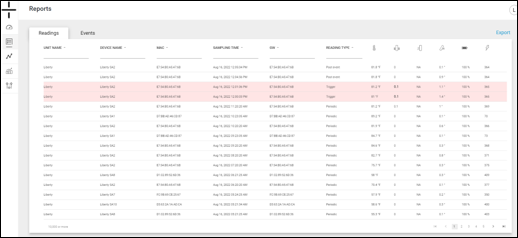
There are 2 tabs at the top of the Reports page:
- Readings: shows all reading for all devices including periodic, trigger and post event readings
- Events: shows trigger events for all devices
Readings Report Details
The Readings Report contains the following information:
- Unit Name – this is the name of the Unit containing the device. The Unit Name and the Device Name are the same by default for the AT-U device type (the stand-alone unit). The Unit Name for the AT-R and AT-C Atoms is the name of their associated Gateway.
- Unit and device names are editable in the Management tab. Please see the Management Section of the manual for set up information.
- Device Name – this is the name of the device and is editable in the Management section of the dashboard
- MAC ID – this is the unique identifier of the Atom
- Sampling Time – this is the date and time that the sample was recorded
- GW – this is the MAC ID (unique identifier) of the Gateway or the App for an associated AT-R or AT-C device. The MAC ID and the GW ID are the same for the AT-U (stand-alone).
- Reading Type – there are four types of searchable readings:
- Periodic – Periodic readings are typically set for either every 12 or every 24 hours. The Atom captures readings for all activated sensors at a set time. The timing of periodic readings is set in the Management section of the dashboard.
- Trigger – A trigger event occurs when a threshold is exceeded.
- Read Now – When the user presses Read Now in the Atomate It! app
- Post Event – Post event readings occur on the schedule set in the management section of the dashboard. As an example, Atoms can be set to record additional temperature readings after the initial temperature threshold has been exceeded to provide additional information re: whether the temperature rises or falls after the trigger reading.
Readings Report: Sensor Icons
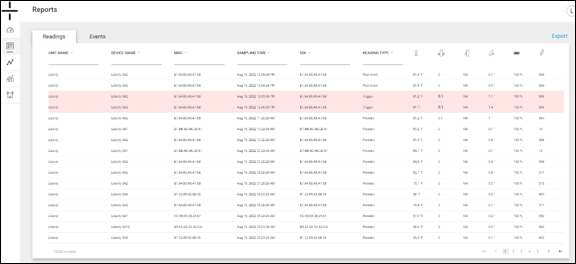
Trigger events are highlighted in red on the Readings Report.
Threshold settings for all sensors are configured in the management tab. Sensors are represented by the following icons in the dashboard:
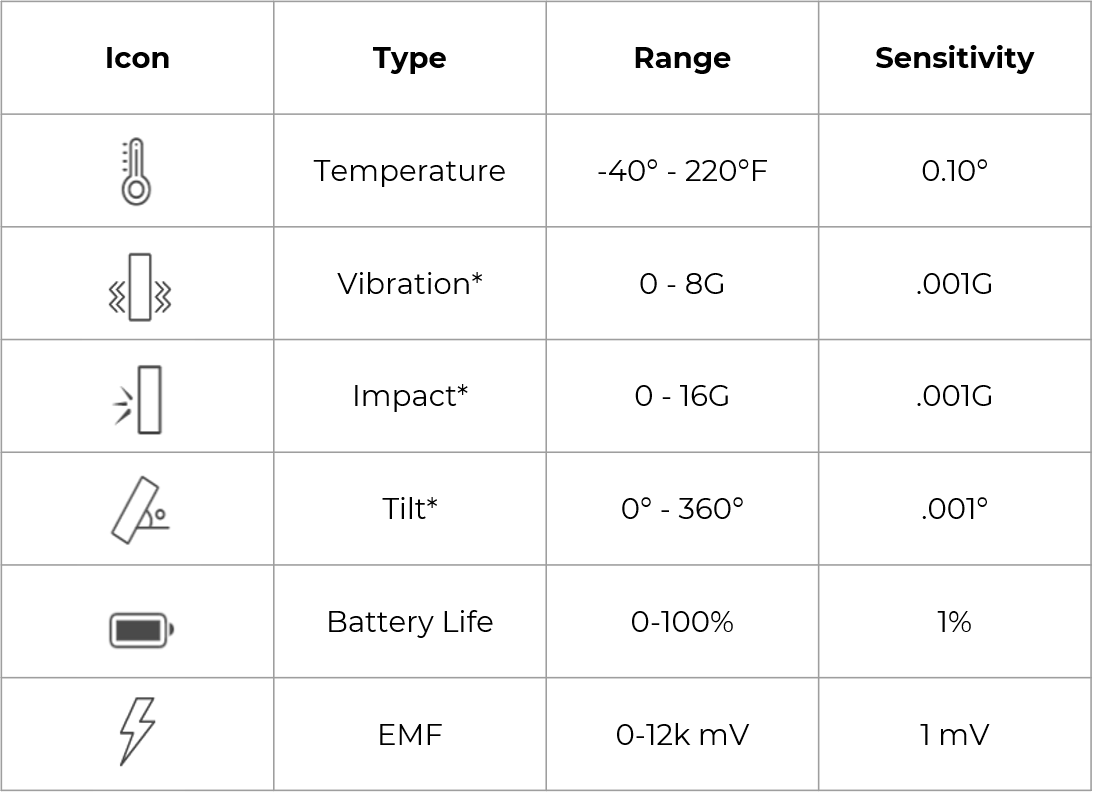
*Vibration, Impact and Tilt are calculated values using a 3-axis accelerometer.
Using the Readings Report
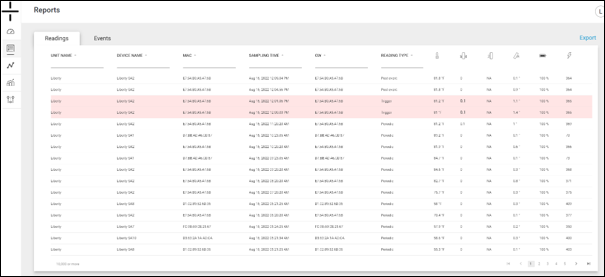
The Readings Report is ideal for an at-a-glance view of device status and to determine if there have been any recent events. The Readings Report can also be used to view readings for each Atom by using the sorting and filtering options at the top of each column. Users can also select a date range by clicking on the Sampling Time column to refine the number of readings in the report.
Look for the rows in red to quickly identify trigger events on the Readings Report.
The report will bold the data value of the sensor that has a trigger. As an example, if the maximum temperature threshold set in the dashboard was exceeded, the temperature reading will be bolded in the event row in the red line on the report.
Users can also see the last date a reading was recorded by reviewing the sampling time.
Clicking on the sensor data value in the row will open a graph of that sensor for that device. As an example, clicking on the temperature value of 84.9° opens a new window containing a graph showing temperature for this device for the last 30 days.
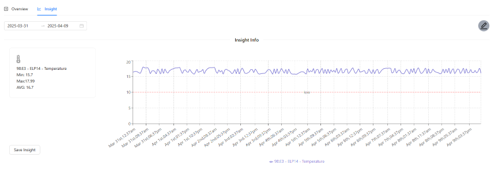
Graphs are not available for battery life or if the data result recorded is NA.
Please review the Comparison Graphs section for details on building graphs in the dashboard.

Occasionally, you may see a string of letters/characters in the Readings Report in the Gateway column instead of a MAC ID. This means that the reading was uploaded to the Dashboard using a mobile device.
When you see a MAC ID in the Gateway column, it means the data was uploaded by the Atomation Gateway.
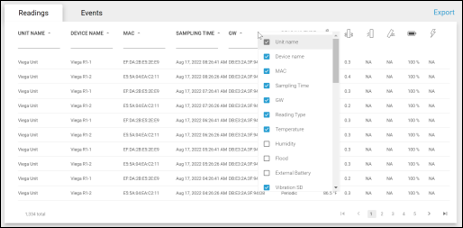
To personalize the Readings Report view, users can choose which columns they see by right clicking on the column headings and then selecting which columns they wish to view. Additional columns not included in this manual are the optional external sensors that appear in the drop down.
Finally, all the data in this report can be exported. Users have the option to export only the rows on the first page or up to 1000 rows in the Readings Report under the Export button (top right of the report).
If you need more than 1000 rows , you can download another bulk of 1000 readings from the last reading page of your previous download.