
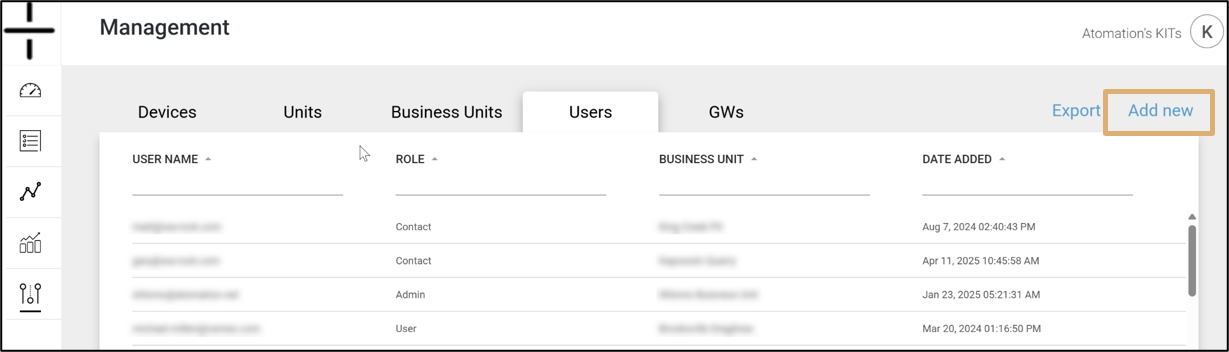
Click on the Add new button from the User screen and select User from the drop down. This screen is composed of two separate sections:
- User
- Linked Devices
Switch between these sections by clicking User or Linked Devices at the top of the screen.
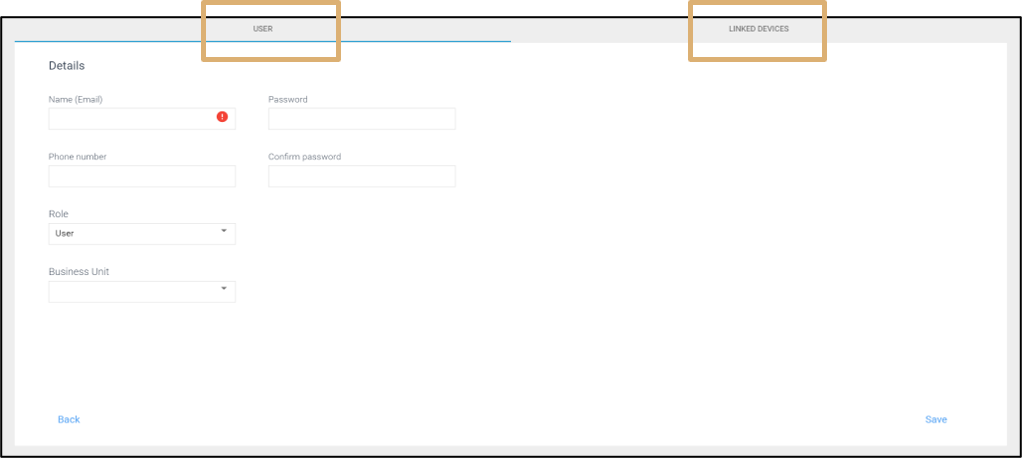
To add a new User:
- Enter their email address
- Enter a phone number with the correct country code (must enter +1 for US based users)
- Select their Role
- Select their Business Unit (if applicable)
Users can also be edited by clicking on the User name on the main user screen.
To link devices to a User:
- Switch to the Linked Devices tab
- Devices linked to this User will appear on this screen
Linking devices to user: this is only used when a administrator wants to associate a device to a “user” type of user. When linking devices to a User, the user will see only the devices linked to him and not the full Business Unit list of devices.
Alerts are managed separately in the Units section of the platform.
In order to access the API, please contact support@atomation.net or your Account Manager.