
It is unlikely that administrators will need to add Gateways to their Atomation account.
Please refer to this section only when directed by the Atomation team to add a new Gateway to your account.
To edit existing Gateways, please review the section titled Edit Gateway later in this guide.
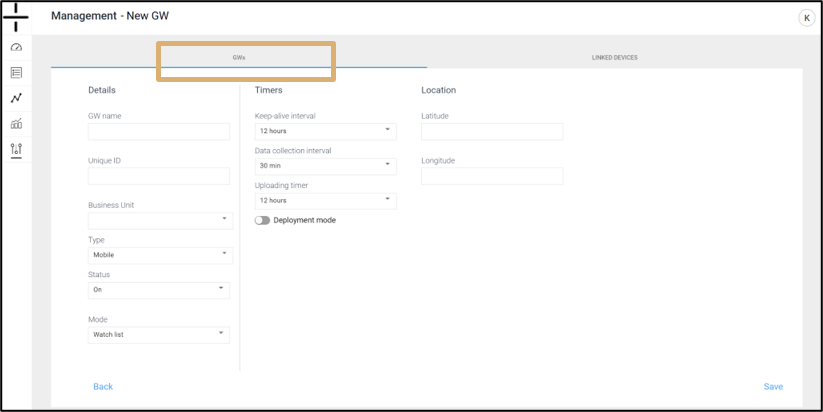
Click on the Add new gateway on the Gateway management screen to access the Add New Gateway section of the dashboard. This screen is composed of two sections. The first section contains the details, timers and location for the Gateway. The second section is the Linked Devices section.
- Column 1: Details
- GW Name: this is the name the user creates for the Gateway
- Unique ID: this is the MAC ID of the Gateway
- Business Unit: dropdown option to select an optional Business Unit
- Type: GW will always be EGW, mobile type is for mobile android tablets or phones
- Column 2: Timers
- Keep alive interval – choose either 12 or 24 hours
- Data collection interval – users have the option to choose how frequently data should be collected from linked devices
- Uploading timer – this determines how frequently data is uploaded from the Gateway to the cloud. Selecting 1 hour will reduce the battery life of the Gateway.
- Deployment mode: This mode is for the first installation at the site. This mode allows users to increase the number of uploads and KAs to get a final score for cellular communication and BLE communication for the Atoms and Gateways. This gives the installer the ability to ensure connectivity and proper set up for devices before finalizing the installation. Deployment mode is set for 3 hours and then returns to the default configuration.
- Column 3: Location
- Latitude and Longitude are auto-populated if the Gateway or Stand-alone unit was able to secure GPS location. More information regarding GPS location is available on this page of the Dashboard manual.
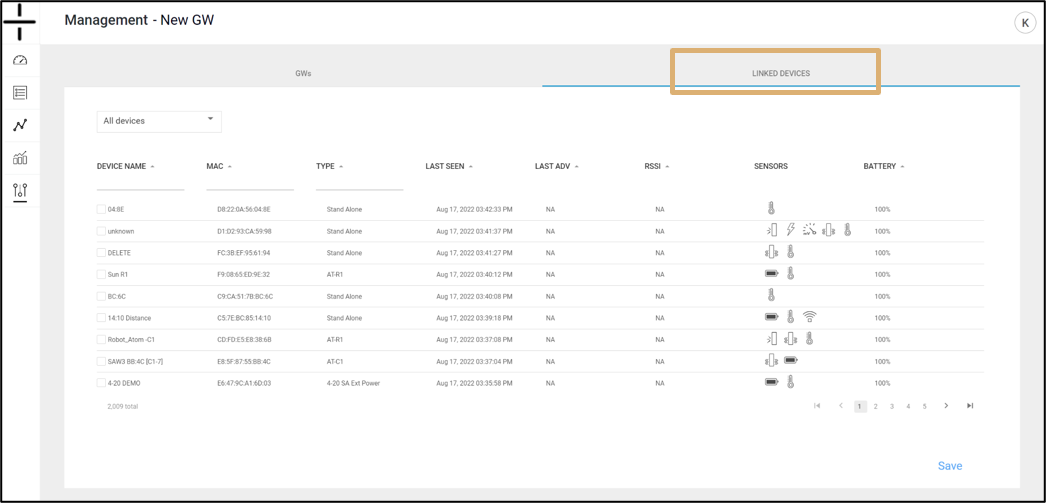
To link a device to a new Gateway, click on the Linked Devices tab. View devices available to link to the Gateway, click the checkbox of the device you wish to link, and click save. The device is now linked to the Gateway.
Device information available on this screen:
- Device Name: this is the name the user creates for the device
- MAC ID: this is the unique identifier specific to each Atom. MAC IDs are provided on the shipment packing list and, excluding the AT-C1.0, are on a sticker on the Atom itself
- Type: this is the type of Atom (AT-R, AT-C, or AT-U (stand-alone)
- Last Seen: the date the Atom last connected to a Gateway or the cloud
- RSSI: this number is helpful when determining if an Atom will successfully connect to a Gateway or the cloud – this indicates the signal strength value.
- Sensors: this shows the sensors that have been activated on the device