
Management – Add New Device
It is unlikely that administrators will need to add devices to their Atomation account.
Please refer to this section only when directed by the Atomation team to add a new device to your account.
To edit existing devices, please review the next section of the guide.
Management – Edit Device
Users will need to edit devices for the following reasons:
- to change the name of the device
- to add or change the associated Business Unit for the device
- to add or update the Linked Unit for the device
- to add or change the users linked to the device
- to edit the sensor settings
- to change the timer settings
Please refer to this section to make these changes when necessary.
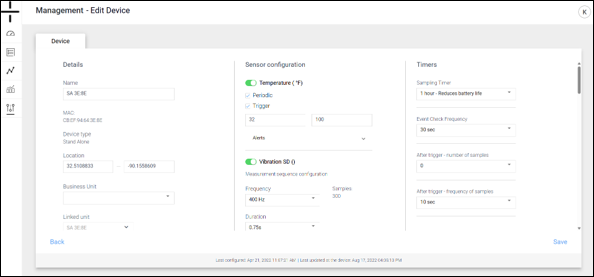
Click on the Device Name in the first column on the Management-Devices screen to access the Edit Device section of the device. This screen (which is almost identical to the Add New Device screen) is composed of three distinct columns.
- Column 1: Details
-
-
- Name: this is the name the user creates to understand where the Atom is placed. Many users will name the Atom after the device it is monitoring (Crusher 1, Pump 2, etc.)
- MAC ID: this is the unique identifier specific to each Atom. MAC IDs are provided on the shipment packing list and, excluding the AT-C1.0, are on a sticker on the Atom itself. This field is not editable on the Edit Device screen.
- Device type: this field is not editable on the Edit Device screen.
- Location: this is an editable field. Users can manually input latitude and longitude coordinates for the AT-C and AT-R Atoms if location was not secured through the App using the Read Now feature. Gateways and AT-Us (stand alones) will automatically update with location information if they are placed within clear view of the sky. Additional information about GPS location is located on this page of the Dashboard Manual.
- Business Unit: if the device should be associated with a specific Business Unit, select it here. Creation of Business Units is addressed in the User Management section of this manual.
- Linked Unit: if the device is an AT-R or an AT-C device that will be linked with a Gateway, click the dropdown and select the Gateway that should be linked to the Atom. Additional details on selecting the Linked Unit and Linked User are on the later pages of this section.
- Linked Gateways: these are the Gateways (if applicable) that are linked to this Atom
- Linked User: use the dropdown to select any user that should have access to the data for this device. If the user/contact is available on the screen that pops up, go to the Add New User section of the manual to add a new user.
- FW Version: this is internal to Atomation and contains the most recent firmware version.
-
At the center of the bottom of this screen you will see the date the Atom was last configured and the date the Atom was last updated.
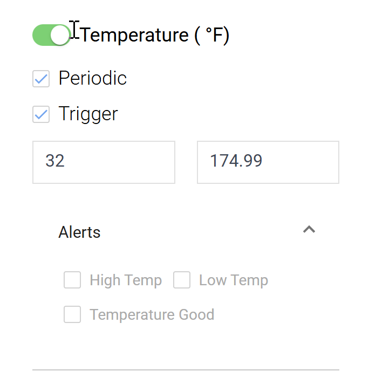
Column 2: Sensor Configuration
- All available sensors are listed in this column.
Temperature
- To activate the sensor, click the toggle so that the toggle shows as green.
- Select if you want periodic readings. Periodic readings are taken on the schedule selected in the Timers column. Timer setup information is located later in this section.
- Select if you want Trigger readings. Triggers are based on the thresholds you add in the boxes below the word trigger. As an example, if you want to know when the Atom temperature falls below 60° or rises above 120°, enter those values in the boxes.
- When you select Trigger, you can now select the types of alerts you would like to receive. For temperature, these are:
- High Temp
- Low Temp
- Temperature Good
Vibration
- To activate the sensor, click the toggle so that the toggle shows as green. You will be unable to configure the sensor until the sensor toggle is green.
- Under frequency, select 400Hz. Specific questions about frequency selection should be sent to support@atomation.net.
- There is only one option for duration.
- Select if you want periodic readings. Periodic readings are taken on the schedule selected in the Timers column. Timer setup information is located on the next page.
- Select if you want Trigger readings. Triggers are based on the thresholds you add in the boxes below the word trigger. The recommended default for vibration is 0.4 and 1.
- Choose the alerts you would like to receive. These include:
- Vibration On
- Vibration High
- Vibration Off
Impact
- To activate the sensor, click the toggle so that the toggle shows as green.
- Periodic readings are not available for impact.
- Input the g-force value threshold for alerts. The maximum impact that can be set is 7G.
- If you select Trigger for alerts, you will receive alerts when there is an impact above the threshold you set in the Trigger.
Tilt
- To activate the sensor, click the toggle so that the toggle shows as green.
- Select if you want periodic readings. Periodic readings are taken on the schedule selected in the Timers column. Timer setup information is located later in this section.
- Select if you want Trigger readings. Triggers are based on the threshold you add in the boxes below the word trigger. As an example, if you want to know when the Tilt angle is above 15°, enter that value in the box.
- Select the type of alert you would like to receive:
- Tilt
- Fallen
- Tilt Good
- Calibrating Tilt
- Devices must be calibrated after they are installed. To set the initial calibration or to recalibrate the tilt (set the tilt angle back to 0 as installed), click the Calibrate button. the Atom will re-calibrate when it next connects to the dashboard.
- Note the Last calibrated date for your reference.
EMF
- Select if you want periodic readings. Periodic readings are taken on the schedule selected in the Timers column. Timer setup information is located later in this section.
- Select if you want Trigger readings. Triggers are based on the threshold you add in the box below the word trigger.
- Select the type of alert you would like to receive:
- No Power
- Power
- Power Good
For assistance with all other sensor types including the 4-20 Atom, please contact support@atomation.net.
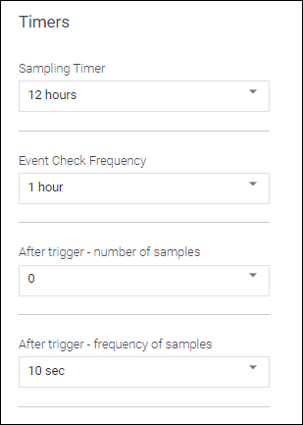
Column 3: Timers
Sampling Timer
This timer refers to periodic sampling. Every sensor set to periodically sample will do so on this schedule. The options are:
- 24 hours
- 12 hours
- 1 hour (reduces battery life)
- If the 1 hour option is selected, Atomation will not guarantee the battery life of the device.
- This does not control how often the Atom communciates. This is only how frequently the Atom sensors make a recording. Timing for data uploads to the dashboard is controlled by the settings in the Add/Edit Gateways section of this manual.
Event Check Frequency
- Timing for communication of trigger events happens based on the Event Check Frequency setting.
- As an example, if the event check frequency is set to 30 seconds, the Atom will check the temperature every 30 seconds. If a threshold has been set for temperature and it is exceeded, the Atom will communicate that a threshold has been exceeded at that time. The temperature will not be recorded when the event check occurs unless the temperature has exceeded the threshold.
- The setting for Event Check Frequency determines how often the Atom checks to see if an event has occurred.
- This does not apply to an Impact event. Impacts detected over the threshold are immediately communicated to the cloud.
- Atoms will also capture data for all active sensors when a trigger event occurs to provide a snapshot view of what the Atom sees across all sensors when a trigger event is captured.
- There are multiple options in this drop down ranging from 10 seconds (which reduces battery life) to 24 hours.
Post Event Readings
To determine if the value being monitored returns to pre-threshold levels, Atomation gives users the ability to schedule additional samples and to control the frequency of those samples. Use these two timers to schedule post event readings.
After Trigger – Number of Samples
- Select from 0 – 20 readings after an event has been captured by the Atom
After Trigger – Frequency of Samples
- Select from 10 seconds to up to 30 minutes for the timing of the additional samples to be taken.
As an example, if the temperature threshold was exceeded, the user can schedule 10 additional temperature readings every 5 minutes to determine if the temperature returns to pre-threshold levels.
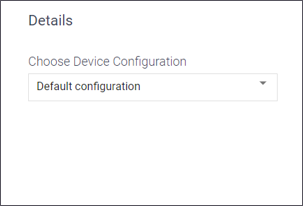
Edit Multiple Devices
First, set one device’s configuration up exactly as you want to set up the additional devices.
Then, to edit multiple devices, simply check the box next to the devices you wish to edit and have the same configuration as the device you have already set up. When multiple devices have been selected, the option to Edit Multiple Devices will no longer appear greyed out.
Click the Edit Multiple Devices button, and then on the next screen, choose the Device you have already set up with the correct configuration from the drop down, then click Save in the bottom right corner.