
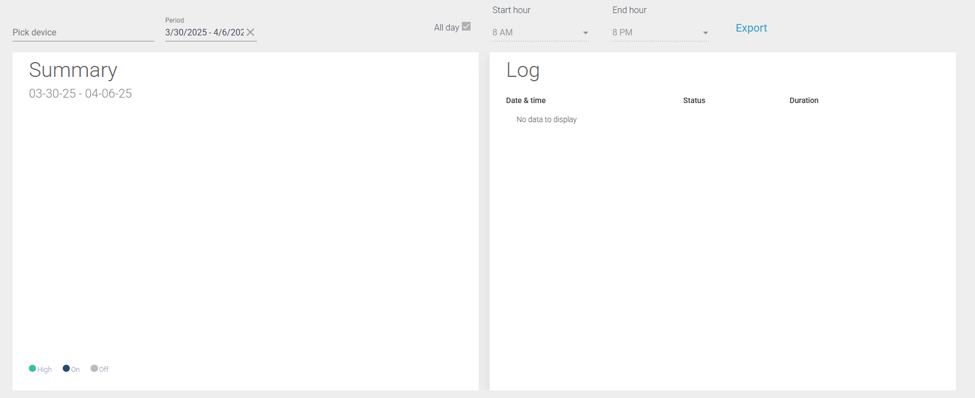
The Run-time Analysis Report contains three sections:
- Summary: Pie chart showing Active, Idle and Off percentages for the specified device
- Log: Shows historical run data listing most recent events first
Analytics will only show devices with vibration sensors that are set to trigger. The analytics report is based on vibration triggers.
To populate the graph, enter the device name or the MAC ID under “Pick device”. Under “Period”, choose the date range you wish to view.
To use the Start hour and End hour filters, uncheck the “All day” checkbox and limit your date range to one day.
The Index in the bottom left denotes if the machine is active (green), idle (blue) or off (gray).
This report is blank by default. User must select a device and date range in order for report to populate.
Atomation captures the timestamp of each trigger (off/idle/active) and this data can be exported using the blue “Export” button in the top right.