
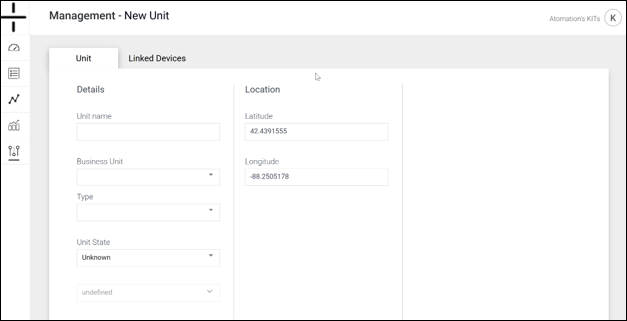
Click on the Add new unit on the Units management screen to access the Add New Unit section of the dashboard. This screen is composed of three distinct columns.
- Column 1: Details
-
-
- Unit Name: this is the name the user creates for the Unit
- Business Unit: if the Unit should be associated with a specific Business Unit, select it here. Creation of Business Units is addressed in the User Management section of this manual.
-
- Type: choose from a drop down list of the type of machine/equipment being monitored
- Unit State: Unit state is auto-populated by the platform and refers to whether the unit is Good, Triggered or Unknown. This is also shown on the main dashboard. This field can be updated in both the Add New Unit and Edit Unit management sections.
-
- GW: select the associated Gateway from the dropdown if applicable. AT-U (stand-alone units) will not have an associated Gateway.
- Column 2: Location
Latitude and Longitude are auto-populated if the Gateway or Stand-alone unit was able to secure GPS location. More information regarding GPS location is available on this page of the Dashboard manual.
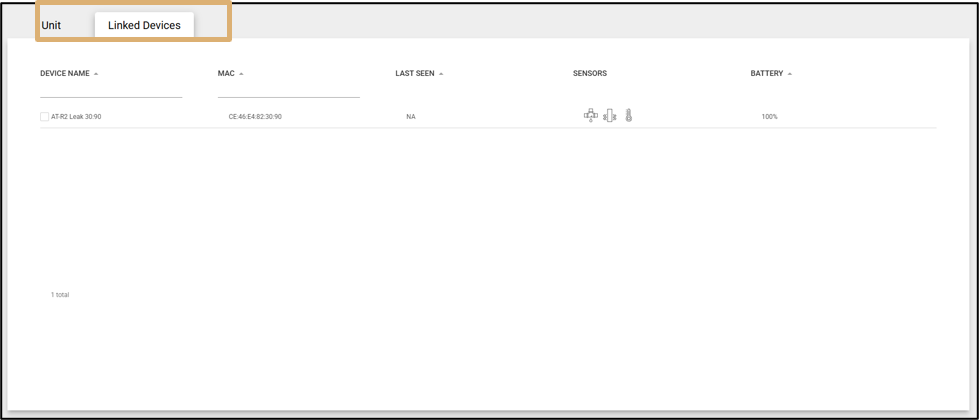
Linked Devices lists the devices that are linked to the Unit. Users can click on the name of the device from this screen to access the Device details screen.
NOTE: Users MUST click Save in the bottom right corner of the dashboard any time anything is edited on this page. If the user navigates away from this page without saving, no changes will be made.