
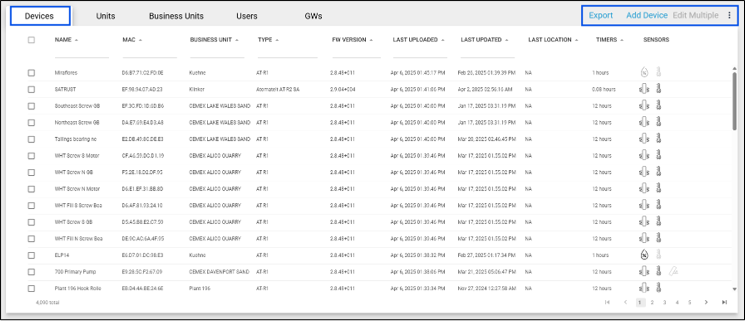
The Devices tab lists all devices by name with activated sensors. Gateways are not listed here – they are listed on the tab titled GWs.
Users can filter and sort using the carets and fields below each column name.
- Name: Atom name created by user
- MAC: Atom identification number
- Business Unit: Associated Business Unit for that Atom
- Type: AT-C1.0, ATR1.0, GW or AT-U1.0/2.0
- FW Version: the firmware version currently installed on the Atom
- Last Uploaded: the Last Date and time the Atom uploaded data
- Last Updated: the last date the device was updated when changes were made to the device settings in the dashboard or via the mobile app
- Last Location: Last location recorded for the Atom – this is not available for all Atoms
- Timers: this denotes the settings that have been selected in the Timer section of the Atom and indicates how often an Atom sends a keep-alive signal
- Sensors: Sensors that have been activated for that Atom
Use the Export option to export a list of all devices in the account.
Should you need to add a device (which is unusual), click the Add Device button, input the information including the MAC ID into the Device screen and click save.
Click the checkboxes to the left of the Atom Names if you wish to edit the settings for multiple devices. The Edit Multiple option is greyed out until multiple Atoms are selected. More information on adding and editing multiple Atoms can be found in the Edit Devices section.
CRITICAL NOTE: The function to edit multiple device configuration DOES NOT apply to alerts. Users and/or contacts must be individually added to each device to ensure that they receive alerts.