
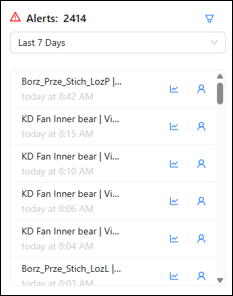
The Alerts section of the dashboard was created to give the user an at-a-glance report of any alerts received on all monitored equipment. Using the drop-down selector, users can choose the date range they wish to view.
Each identified alert has three clickable options:
- Device Name: Clicking on the name of the device shows the device location on the map.
- Users can also see by the red outline on the location icon on the map which device is alerting and where the device is located.
- Graph: Clicking on the graph button opens a new window with a graph of the recorded sensor readings for that alert.
- Alerts sent: Clicking on the Person icon displays a pop up showing who received the alert and the phone number the alert was sent to. Click on the X to close the Alerts Sent screen.
f the user has administrative privileges on the account, he/she can choose to edit the contacts receiving the alerts to the device.
Filter by Device Name
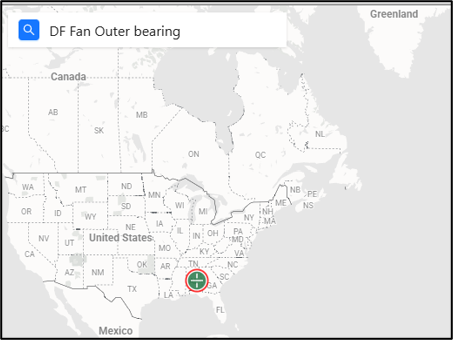
To display a particular device on the map, enter the device name into the search bar.
Map
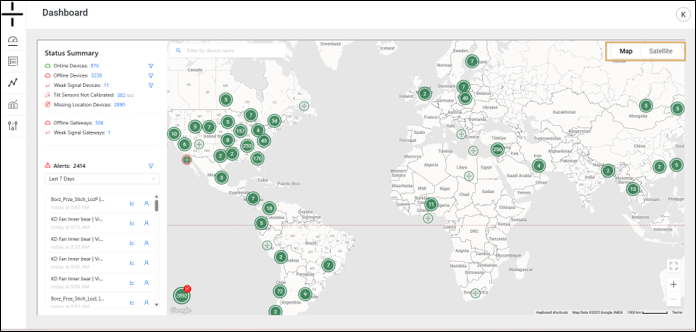
Zooming in and out is also possible by clicking the + and – icons in the bottom right corner. To return to the default view, click the square icon.
The map provides the GPS location of Stand-Alone units and Gateways. Additional information regarding using the GPS functionality of Atoms is on the next page.
Users can switch between the map and satellite view using the selector in the top right corner.